
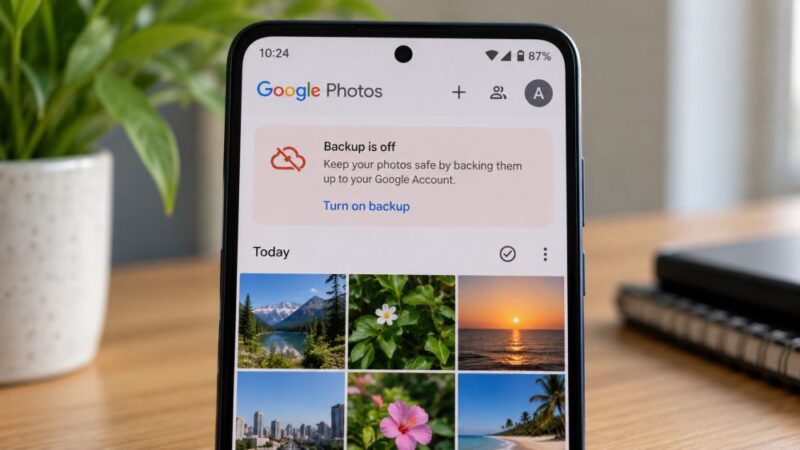
Have you ever deleted photos from your Android phone, only to discover that they weren’t backed up the way you expected?
A user on Android Enthusiasts Stack Exchange raised a similar concern. They described how their son had uploaded around 1,000 photos and received a successful backup message, but later found the pictures missing from Google Photos.
This raises an important question: what should you do when your photos aren’t available in Google Photos, especially if backup was turned off or never completed?
The first step is to determine whether the pictures are still on your phone, stored in another backup, or permanently deleted. Each situation calls for a different approach. Let’s look at the options you can try before giving up on your photos.
1. Check Google Photos Trash First
Before trying a recovery tool, check whether your deleted pictures are still in Google Photos Trash. Photos that remain there may be restored without using any additional software.
Here’s how to check:
- Open the Google Photos app on your Android phone.
- Tap Collections and select Trash. The exact labels may vary slightly by app version.
- Look for the missing photos.
- Select the pictures you want to recover and tap Restore, if available.
Google Photos generally keeps backed-up photos in Trash for 60 days. Photos deleted from an Android 11 or later device without being backed up are generally kept for 30 days. The exact rules depend on the circumstances, so check Google’s official photo restoration guidance.
If the pictures aren’t there, continue with the next step.
2. Make Sure You’re Using the Right Google Account
Sometimes, photos appear to be missing simply because you’re signed in to a different Google account. This can happen if you use multiple accounts for personal and work purposes.
To check:
- Open Google Photos.
- Tap your profile picture in the top-right corner.
- Check which Google account is active.
- Switch to any other account you may have used for backups.
- Visit photos.google.com in a browser and check whether the missing pictures appear there.
You should also check the backup settings in Google Photos. Confirm which account is being used for backups, whether backup is enabled, and whether the relevant device folders were included.
If the photos were never uploaded, they won’t appear in your Google Photos cloud library. In that situation, you’ll need to look for another copy.
3. Check Your Phone’s Gallery and Other Backup Locations
Google Photos isn’t necessarily the only place where your pictures may be stored. Depending on your device and settings, copies might exist in your phone’s Gallery app, another cloud service, or a separate backup.
Check these locations before attempting recovery:
- Gallery Trash or Recently Deleted: Samsung Gallery and some other gallery apps have their own deleted-items folders.
- Device folders: Look in folders such as Camera, Screenshots, Downloads, and images saved by messaging apps.
- Google Drive: Check whether you manually uploaded the photos or stored copies there.
- Other backups: Look at any computer, external drive, or cloud service you previously used to save your pictures.
Keep in mind that Google Photos and your phone’s Gallery may interact with the same local files. Deleting a picture in one place can sometimes affect its availability elsewhere, depending on how it was deleted and whether it was backed up.
If you find another copy, save it somewhere safe before making further changes to your phone.
4. Try Recovering Photos That Were Deleted From Your Android Phone
What if the pictures aren’t in Google Photos, your Gallery’s Trash, or any other backup?
If the original files were stored on your Android phone and have since been deleted, you may be able to try android data recovery software. The results depend on your device, its storage, and whether the deleted data remains recoverable.
One option is Stellar Data Recovery for Android, which connects an Android device to a Windows PC over USB. It can scan for supported data types, including photos and videos, without requiring you to root your phone.
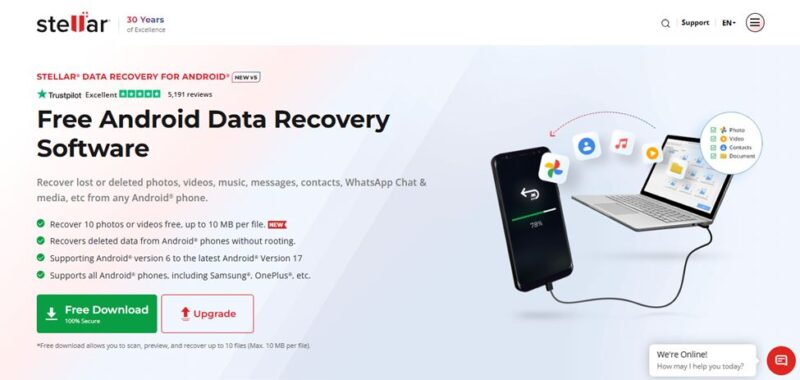
Here’s how to try it:
- Download and install Stellar Data Recovery for Android on a Windows PC.
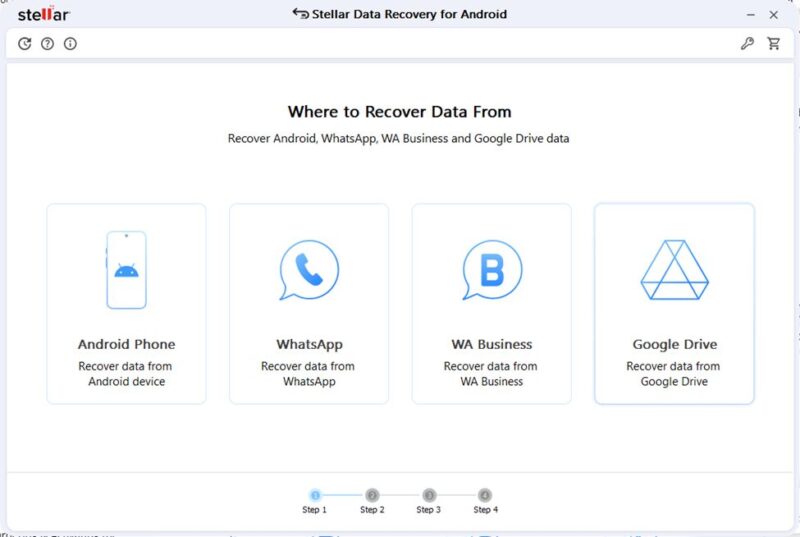
2. Connect your Android phone to the computer using a USB cable.
3. Follow the software’s on-screen instructions to connect and authorize the device.
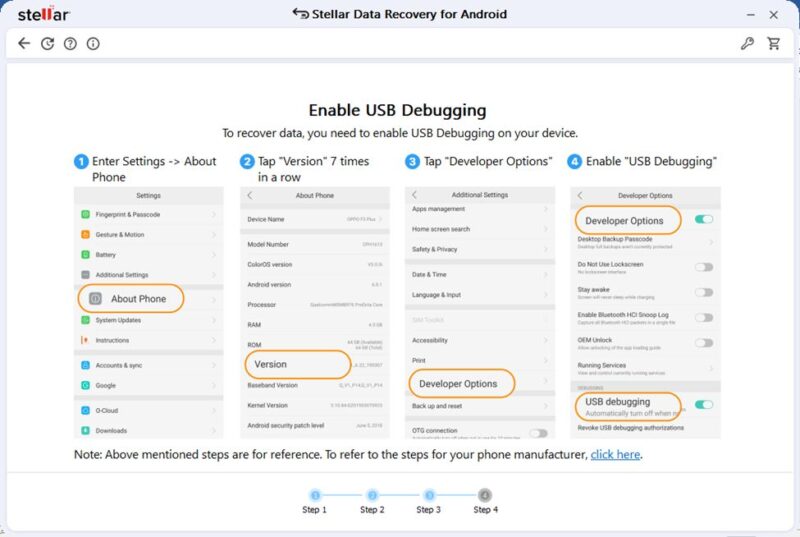
4. Start a scan for supported recoverable files.
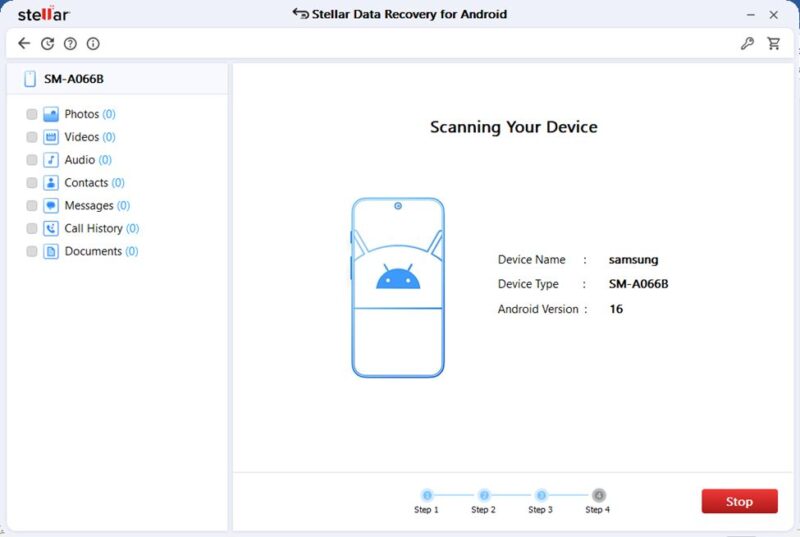
5. Preview the scan results and check whether the missing photos are listed.
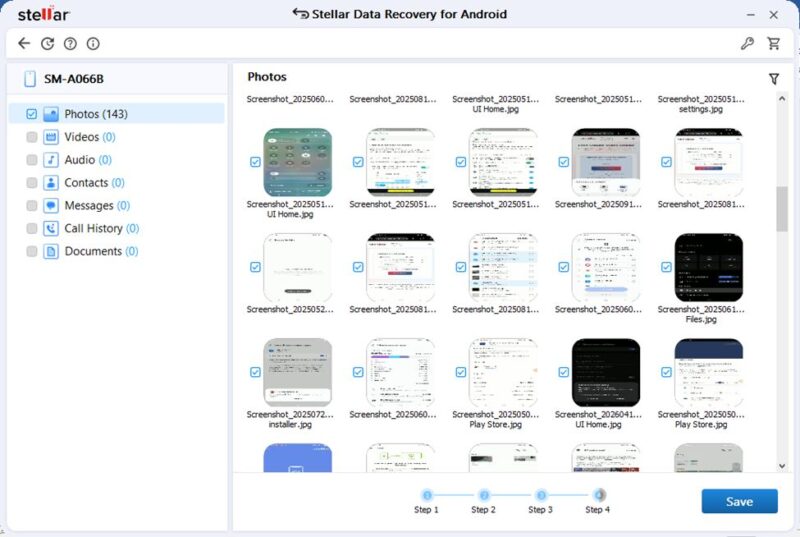
6. If the photos are available for recovery, follow the software’s instructions to save them.
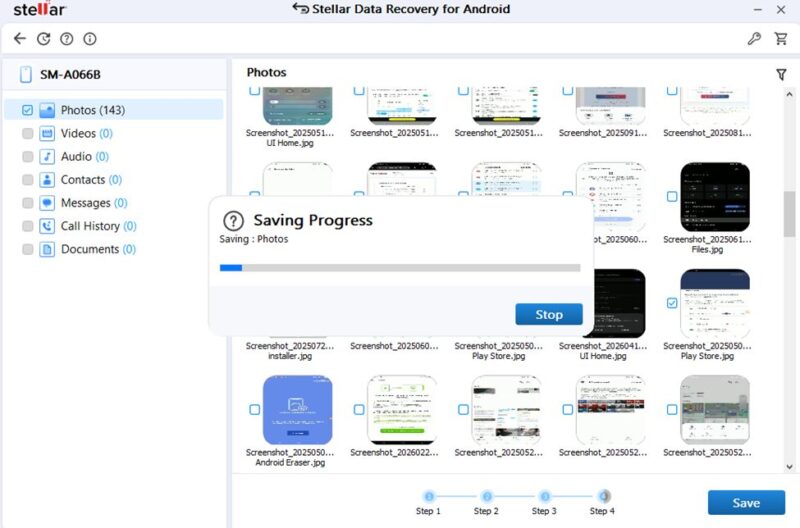
The free version lets you scan and preview results and recover up to 10 photo or video files, with a maximum size of 10 MB per file.
Important: A scan does not guarantee that deleted photos will be found. Modern Android devices use storage encryption and other protections, and deleted data may become unrecoverable. The software also cannot retrieve photos that existed only in Google’s cloud and have been permanently deleted from Google’s servers. It looks for supported recoverable data on the device; it isn’t a substitute for Google Photos backup.
If the photos are important, avoid taking lots of new pictures, downloading large files, or installing unnecessary apps until you’ve explored your options. New activity can reduce the chances of recovering some deleted data.
5. What If Google Photos Backup Was Never Enabled?
If Google Photos backup was turned off when you took the pictures, the photos may never have reached your Google account in the first place.
In that case, Google Photos cannot restore a cloud copy that was never uploaded. Your best options are to look for the original files on the phone, check other backups, and consider recovery software if the local files were deleted.
If the photos were uploaded and later disappeared, the situation is different. Check the correct Google account, Trash, Archive, and device folders before assuming they have been permanently lost.
You can also use Google’s missing photos troubleshooting guide to check other possible causes.
How to Prevent This From Happening Again
Once you’ve checked for the missing pictures, take a few precautions to protect future photos.
- Verify backup completion: Open Google Photos and check its backup status instead of assuming every new picture has uploaded.
- Check the backup account: Make sure your pictures are being saved to the Google account you actually use.
- Check device folders: Screenshots and images from other apps may not be backed up automatically.
- Keep a second copy: Periodically transfer important photos to a computer or external drive.
- Test your backup: Open Google Photos on another device or in a browser to confirm that important pictures are accessible.
A backup is only useful if the files you need are actually included and can be restored.
Final Thoughts
If Google Photos backup was off when your pictures were taken, start by checking whether the originals still exist on your phone or in another backup. If the local copies were deleted, you can consider a recovery tool, but success depends on whether the data is still recoverable.
The most important lesson is to verify your backups before deleting local photos. A successful backup message is reassuring, but checking that your pictures are actually accessible from another device is a much safer way to protect them.
Frequently Asked Questions
Can I recover photos if Google Photos backup was turned off?
Possibly. First, check your phone’s Gallery, Trash, and any other backups. If the photos were stored locally and then deleted, recovery software may find recoverable files. Success depends on the device and the condition of the deleted data.
Can Google recover photos that were permanently deleted from Google Photos?
Google Photos says permanently deleted items cannot be restored through its Trash. If the photos existed only in the cloud and were permanently deleted, a tool that scans your phone cannot retrieve them from Google’s servers.
Does turning on Google Photos backup recover old deleted pictures?
No. Turning backup on helps upload eligible photos that are still available on your device. It doesn’t bring back files that have already been permanently deleted.
Should I root my Android phone to recover deleted photos?
Not as a first step. Rooting can introduce security risks and may require procedures that wipe data on some devices. It also doesn’t guarantee recovery. Check available backups and try less invasive options before considering rooting.
Why can’t a recovery tool find my deleted photos?
There are several possible reasons: the photos may never have been stored on the device, the files may have been overwritten or become inaccessible, or Android’s storage protections may prevent recovery. No recovery tool can guarantee that every deleted photo will be found.